Job hunting has a strange shape. The thinking part is small: is this role right for me, and what makes me a good fit? The typing part is enormous: the same name, the same address, the same work history, pasted into form after form that each ask for it slightly differently.
This guide sets up Claude to do the typing, and a good share of the searching, while you keep the decisions. By the end you will have:
- Claude Desktop connected to your Chrome browser
- a small profile file that is the single source of truth about you
- prompts that search job boards against your criteria
- a repeatable way to tailor your CV to each posting without inventing anything
- a safe routine for filling application forms where you review before anything is sent
- a simple tracker (plus a tiny script) so nothing falls through the cracks
No coding is required. If you like terminals, there are optional extras marked for developers.
What you need
- A paid Claude plan. At the time of writing, Anthropic lists Pro, Max, Ultra, Team and Enterprise for Claude in Chrome. Free is not on the list.
- Google Chrome on desktop. Anthropic says Claude in Chrome is not supported on other Chromium browsers or on mobile.
- The Claude Desktop app.
- Your CV in an editable format (Word, Google Docs or Markdown) and an hour to set things up properly. The hour pays for itself by your third application.
How the pieces fit
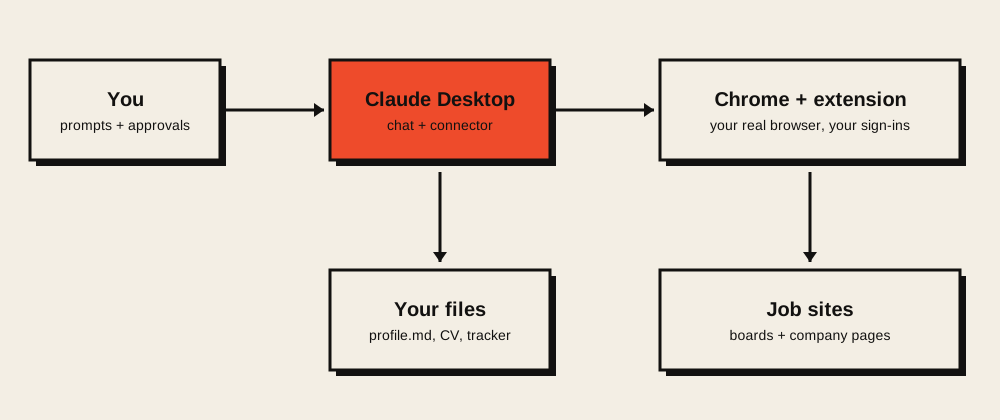
Three things work together. Claude Desktop is where you chat and give instructions. The Claude in Chrome extension lets Claude act inside your real browser, using your existing sign-ins. Your files hold the facts about you so Claude never has to guess.
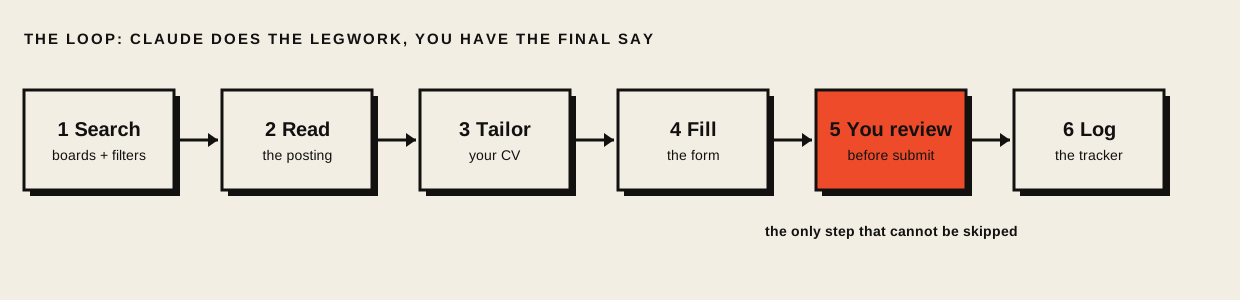
And the workflow is a loop with one fixed checkpoint:
Step 1: Install Claude in Chrome
- Open Google Chrome and find Claude in Chrome in the Chrome Web Store.
- Click Add to Chrome, then sign in with your Claude account when asked.
- Pin it: click the puzzle-piece icon in the toolbar, then the thumbtack next to Claude.
- Accept the permissions it asks for, then click the Claude icon to open the side panel.
Step 2: Connect it to Claude Desktop
This lets you start browser work from the desktop app without switching windows.
- In Claude Desktop, click your initials at the bottom left, then Settings.
- Go to Customize, then Connectors.
- Find Claude in Chrome, click Configure, and switch it on.
- In a new chat, open the Connectors drop-down and make sure Claude in Chrome is enabled for that conversation. It is off by default per conversation.
Step 3: Choose the safe mode
The chat box has a mode drop-down. Anthropic describes three modes:
| Mode | What it does | Use it for job hunting? |
|---|---|---|
| Manually approve | Asks before each action. You choose Allow or Deny. | Yes. Start here. |
| Automatically approve | Keeps going; a safety check reviews actions and pauses when needed. | Maybe later, for read-only searching. |
| Skip all approvals | Never pauses and nothing checks its actions. | No. Not for anything that submits as you. |
Pick Manually approve for form filling. You will click Allow a lot at first. That is the feature, not a bug: it is how you catch a wrong answer before it ships.
Site permissions
When Claude needs a site, a prompt appears: Allow this action (one action only), Always allow actions on this site, or Decline. Prefer the first. Even with “always allow”, Claude still asks before downloading files, entering sensitive information, or granting authorizations.
To review or revoke sites later: click the Claude extension icon, open the three dots in the side panel, then Extension settings, then Permissions.
Step 4: Build your profile file
Claude is only as accurate as what it is given. Instead of letting it improvise from an old CV, create one plain text file that holds everything true about you. Every tailored CV and every form answer will come from this file.
Make a folder called job-search and save this as profile.md. Replace the examples with your real details.
# Profile
## Contact- Name: Alex Rivera- Email: alex@example.com- Phone: +1 555 0100- Location: Lisbon, Portugal (open to remote and relocation)- LinkedIn: https://www.linkedin.com/in/alex-example- Portfolio: https://alex.example
## Work authorisation and logistics- Right to work: EU citizen- Notice period: 4 weeks- Salary expectation: 55,000 to 65,000 EUR- Start date: flexible from 1 January
## Target roles- Frontend or full-stack engineer, mid to senior- Remote or hybrid in Europe- Not interested in: unpaid trials, agencies that hide the client, on-call heavy roles
## Experience (facts only, no spin)### Senior Frontend Engineer, Northwind (2022 to now)- Led migration of a 400-page app from AngularJS to React; load time 5.1s to 1.9s.- Mentored 3 junior developers.- Stack: React, TypeScript, Node, PostgreSQL, AWS.
### Frontend Engineer, Contoso (2019 to 2022)- Built the design system used by 6 product teams.- Stack: Vue, JavaScript, Jest.
## Education- BSc Computer Science, University of Example, 2019
## Skills- Strong: TypeScript, React, accessibility, testing- Working: Node, SQL, AWS- Learning: Rust
## Things I will not claim- No management title (I mentored, I did not manage).- No experience with Kubernetes.
That last section matters more than it looks. It gives Claude explicit lines it must not cross, which is where most “AI-written CV” embarrassments start.
Step 5: Search for jobs
Open a new chat in Claude Desktop with the Chrome connector on, point Claude at your folder, and use a prompt that states your criteria and the output you want. Vague prompts get vague shortlists.
Read job-search/profile.md.
Search for roles that match my "Target roles" section on LinkedIn Jobsand on the careers pages of these companies: [list 5 to 10 companies].
For each posting that looks like a real fit, give me:- Company, title, location and remote policy- The link- 3 bullet points: why it fits me, and one honest reason it might not- Salary if listed
Rules:- Skip anything that matches my "not interested in" list.- Skip reposted or duplicate listings.- Show me at most 10 results, best fit first.- Do not apply to anything. Search only.
You get a shortlist you can scan in two minutes. Tell Claude what you want changed (“fewer agencies”, “only fully remote”) and run it again.
Step 6: Tailor your CV, honestly
Tailoring means choosing and ordering true facts to match the role. It does not mean adding skills you do not have. Here is the method that keeps you on the right side of that line.
- Claude reads the posting and lists what the employer asks for.
- Claude matches each item to a real fact in
profile.md, or marks it as a gap. - Claude rewrites your CV highlights using only matched facts.
- You read the result against your profile before using it.
Open this posting: [paste the URL].
Step 1. List the 8 most important requirements and keywords from the posting.Step 2. Map each one to evidence in job-search/profile.md. Mark each as:        MATCH (with the exact fact), PARTIAL, or GAP.Step 3. Write a one-page CV in Markdown using only MATCH and PARTIAL facts.        - Lead with the most relevant experience.        - Use the posting's wording where it truthfully fits.        - Never add a skill, tool, title or number that is not in my profile.        - Keep it to one page.Step 4. Write a 120-word cover note in plain language, no clichés.Step 5. Show me the gaps so I can decide whether to apply.
Step 5 is the underrated one. A list of gaps tells you whether the role is worth your evening, and it prepares you for the interview question you are most likely to get.
A short before and after
Say the posting asks for “experience improving web performance in a React codebase”.
- Led migration of a 400-page app from AngularJS to React.- Mentored 3 junior developers.- Cut load time from 5.1s to 1.9s while migrating a 400-page app from AngularJS to React, the performance work this role centres on.- Mentored 3 junior developers in React and TypeScript best practice.Same facts, same numbers, reordered and worded for the reader. Nothing was invented.
ATS-friendly formatting
Many companies filter CVs through applicant tracking software first. These habits help:
- One column, plain headings such as Experience, Education, Skills.
- Standard fonts and no text in images, tables or text boxes. Some parsers cannot read them.
- The exact keywords from the posting, where they are true. If it says “TypeScript”, do not write only “typed JavaScript”.
- Save as PDF unless the posting asks for Word.
Step 7: Fill the application form
Now the part that used to eat your evenings. Open the application page in Chrome, then start a chat with the connector on and Manually approve selected.
I am on the application page for [company], [role], in Chrome.
Use only job-search/profile.md and the tailored CV we just made.
1. Fill every field you can answer from those files.2. If a field asks for something not in my files (a motivation question,   a salary figure, a visa detail), stop and ask me. Do not guess.3. Upload the tailored CV when asked.4. Do NOT click Submit. When the form is complete, list every answer you   entered so I can review it, then wait.
Claude shows what it plans to enter and asks before it acts. Read the list the way you would proofread an email to your future employer. In particular, check:
- Name, email, phone: one typo here loses the whole application.
- Dates and titles: they must match your CV and your LinkedIn.
- Salary and notice period: these affect negotiation, so confirm them yourself.
- Yes/no screening questions (work authorisation, relocation): a wrong “yes” is worse than a slow application.
When you are satisfied, you click Submit.
What Claude will not do for you
Anthropic’s help pages list actions Claude declines even with permission, including creating accounts, handling sensitive card or ID data, and making purchases. In practice for job hunting:
- Creating a new account on an application portal: you do this, then tell Claude to continue.
- Passwords and one-time codes: sign in yourself first. Claude works inside your signed-in session.
- CAPTCHAs and bot checks: you solve them.
- Government ID numbers or similar: you type those.
This is good. It keeps the sensitive parts of the application in your hands.
Things that go wrong
- A dropdown or date picker stays empty. Custom widgets can trip the tool. Ask Claude to retry once; if it still fails, fill that single field yourself.
- A wrong answer slips in. Browser agents can make mistakes, and long runs of similar forms are where they are most likely to slip. That is why the review step exists. Do not batch ten applications and approve them all at once.
- The page forgets everything on reload. Some long forms lose progress. Ask Claude to fill and stop at the last step so you are not racing a session timeout.
Step 8: Track everything
A tracker turns a chaotic week into a list. Ask Claude to maintain a CSV in your job-search folder:
date,company,role,url,status,fit,notes2026-11-01,Acme,Frontend Engineer,https://acme.example/jobs/1,applied,high,Referral possible2026-11-10,Globex,Backend Engineer,https://globex.example/jobs/9,applied,medium,2026-11-12,Initech,Full-stack Engineer,https://initech.example/jobs/4,interview,high,Call on FridayAfter you submit an application, tell Claude:
Add a row to job-search/jobs.csv for the application I just submitted:today's date, company, role, URL, status "applied", fit rating from yourgap analysis, and one note about anything unusual in the form.Use commas only as separators; remove commas from any text.Optional: a follow-up checker (for developers)
This small Node script lists applications that have been waiting more than a week with no reply. Save it next to jobs.csv.
// Usage: node follow-ups.mjs jobs.csv [days]import { readFileSync } from 'node:fs';
const [file = 'jobs.csv', days = '7'] = process.argv.slice(2);const [header, ...lines] = readFileSync(file, 'utf8').trim().split(/\r?\n/);const cols = header.split(',');const cutoff = Date.now() - Number(days) * 86_400_000;
const due = lines  .map((line) => Object.fromEntries(line.split(',').map((v, i) => [cols[i], v])))  .filter((row) => row.status === 'applied' && new Date(row.date).getTime() <= cutoff);
if (due.length === 0) { console.log(`Nothing older than ${days} days. Nice and tidy.`);} else { console.log(`${due.length} application(s) waiting more than ${days} days:\n`); for (const r of due) console.log(`- ${r.company} | ${r.role} | applied ${r.date}\n ${r.url}`);}node follow-ups.mjs jobs.csv 71 application(s) waiting more than 7 days:
- Acme | Frontend Engineer | applied 2026-11-01 https://acme.example/jobs/1It uses only Node’s built-in modules, and it expects the no-commas-in-text rule from the logging prompt above.
Step 9: Make it repeatable
Typing the same prompts every day gets old. The extension has two features for this, per Anthropic’s documentation:
- Shortcuts. Save a prompt that works as a shortcut, then call it by typing
/in the chat. Edit or delete shortcuts in the extension settings. - Scheduled tasks. Shortcuts can run on a schedule (daily, weekly, monthly or yearly) from the clock icon at the top right of the extension panel.
A good split: schedule the search (read-only, low risk) and run the form filling yourself while you watch. Let Claude find roles at 8am. Review them with coffee. Apply to the two that deserve it.
Safety and fair play
- Never use “Skip all approvals” on an application. Nothing checks its actions, and an application is something you cannot unsend.
- Check each board’s terms. Some sites restrict automated activity. Using Claude in your own signed-in browser, with you approving actions, is much closer to an assistant than a bot farm, but the rules are the site’s. When in doubt, search with Claude and apply by hand.
- Be honest. Tailoring chooses and orders true facts. If a recruiter asks about something on your CV, you must be able to talk about it. The “Things I will not claim” section in your profile is your guardrail.
- Protect your data. Do not paste passwords, ID numbers or bank details into chats or files. Keep
profile.mdprivate. - Say so if asked. If an application asks whether you used AI assistance, answer truthfully.
Troubleshooting
Claude does not open Chrome. Check that the connector is on for this conversation in the Connectors drop-down, and that Chrome is running with the extension signed in.
It keeps asking for permission. That is Manually approve doing its job. Use “Allow this action” for sensitive pages and “Always allow actions on this site” for boards you trust.
It will not do something on a page. Some actions are blocked on purpose (accounts, payments, sensitive data). Do that step yourself and tell Claude to continue.
The extension does not appear for me. Confirm you are on a paid plan and using Google Chrome. Availability and plan rules change, so check Anthropic’s help page.
Answers are generic. Your profile is too thin. Add numbers, project names and outcomes. Specific input is the only cure for generic output.
The 10-minute checklist
- Claude in Chrome installed and pinned
- Connector on in Claude Desktop, mode set to Manually approve
-
profile.mdwritten, including “Things I will not claim” - Search prompt saved as a shortcut
- Tailor and fill-form prompts saved
-
jobs.csvcreated - One practice application filled and reviewed, not submitted, to learn the flow
Wrap-up
The machine is good at the tedious parts: searching, matching, retyping. You are good at the parts that matter: judging fit, telling the truth about your work, and deciding to press Submit. Set it up once, keep the checkpoint, and your applications get faster and better.
If this guide helped, or if a step changed on your screen, use the Write to me button below. I would like to keep it accurate.